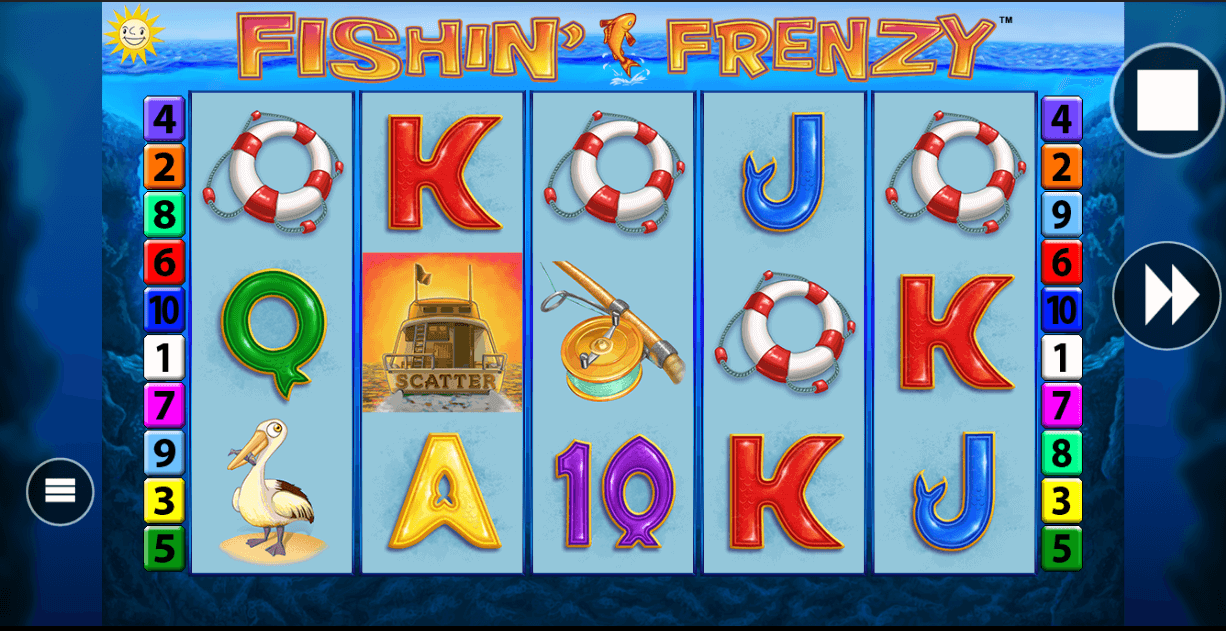
How To Play
Before you spin, you'll need to configure your bet, and Fishin' Frenzy gives you more control than most modern slots. This isn't a simple "pick total bet and go" setup—you're selecting both the number of active win lines and your bet per line. If you need guidance on responsible gambling practices, it's important to set limits before you start.
Setting Up Your Bet
Click the stack of coins button to open the bet menu. You'll see two settings here:
- SELECT LINES Choose how many win lines you want active (1 to 10). Fewer lines mean smaller total bets, but you'll only win on the lines you've selected.
- SELECT BET Set your bet per line. Your total stake is calculated by multiplying your bet per line by the number of active lines.
The total bet displays under BETS and ranges from 1.00 to 2,000.00 (or currency equivalent). This two-part system lets you tailor your risk—you could play all 10 lines with a small per-line bet, or focus on fewer lines with higher stakes.
Spinning the Reels
Once your bet's set, press the circular arrow spin button. The reels spin and stop automatically from left to right. Here's where it gets useful: during the spin, the button changes to a fast-forward icon. Press it to stop the reels prematurely if you're impatient. This doesn't affect the outcome—the result's already determined when you pressed spin—but it speeds things up.
Autoplay Options
The circular arrows button opens the autoplay menu. Select how many spins you want (the exact number options aren't specified in the documentation, but you'll see them in the menu). The remaining autoplay spins display on the button itself as they count down.
Important: autoplay stops automatically when you trigger free spins or hit any loss limit you've set. You'll see additional settings marked with asterisks (*) in the menu—these are mandatory selections before autoplay starts. To pause autoplay mid-session, press the square stop button. You can resume by pressing spin again, and your remaining autoplays will continue.
The interface keeps things transparent—your active win lines display as coloured lines across the reels, and line numbers (1-10) appear on both sides of the screen, grayed out when inactive.